How do I get started?

Ready, set, go!
Introduction and objectives
In this tutorial, we will be introducing you to the main software we will be using to analyse data.
Our aim is to import our data into R. Along the way, we will learn about how to:
- Understand some history of
Rand where it originated from - keep our analyses tidy using folders or directories
- Understand and apply file paths, and how they may differ between using in
Rand the various different types of operating systems. - Understand the concept of a working directory and the difference between relative and absolute file paths
- Understand how comments are written in
R - Understand how to import data into
Rand write basicRcode - Understand the basic building blocks of
Rcode: objects, functions and arguments, and - Understand the structure of files used to store epidemiological data (often Excel™ spreadsheets)
A brief history of R
R was developed in Auckland by Ross Ihaka and Robert Gentleman as an open source copy of the S language developed by John Chambers at Bell Labs in the United States. It is free and open source, so you never have to pay for it. It is also very flexible and powerful but has a steep learning curve that can be difficult 😩. It is also very good for data visualisation. There is not much you can't do in R: data transformation, mapping, plotting, report writing are all up for grabs.
I love using R because it so flexible & powerful.
Here's an example of a recent paper I published with collaborators. It incorporates maps, tables and plots of the regression models, all made possible by the power of R!
Check your understanding
<div class="panel panel-default tutorial-question-container">
<div data-label="benefit" class="tutorial-question panel-body">
<div id="benefit-answer_container" class="shiny-html-output"></div>
<div id="benefit-message_container" class="shiny-html-output"></div>
<div id="benefit-action_button_container" class="shiny-html-output"></div>
<script>if (Tutorial.triggerMathJax) Tutorial.triggerMathJax()</script>
</div>
</div>
Keeping your analysis tidy using folders

neat and tidy
"Science is organised knowledge.
It is important to be organised. The number one problem I see in the health sector with data analysis is not remembering the definition of a P-value, but staying organised. Data analysis is a complex task, with many different steps. It is important to record where you've been and where you are heading. You need a map to negotiate the murky research waters. Start with a clear research question in mind and have the objectives or milestones written down beforehand so that you know where you're heading. Without this, you'll flounder into the research swamp of confusion and frustration 🤯.
Make sure your data is housed on a network drive -- not your desktop -- so that in the event of hardware failure, you'll still have your work backed up. Create a separate folder or directory for each new project, and within that folder create separate other folders, such as:
- Documentation (for aims and objectives, ethics application and relevant literature, and journal of where your project is up to)
Rcode (where yourRcode lives, the file extension is.R)- Raw data (the data you receive to analyse, which is often an Excel or
.xlsxor.csvfile) - Outputs (papers, manuscripts or reports, often a
.docxor Microsoft Word file) .Rdatafiles (this is the data that is worked on inR).
Check your understanding
<div class="panel panel-default tutorial-question-container">
<div data-label="R_code" class="tutorial-question panel-body">
<div id="R_code-answer_container" class="shiny-html-output"></div>
<div id="R_code-message_container" class="shiny-html-output"></div>
<div id="R_code-action_button_container" class="shiny-html-output"></div>
<script>if (Tutorial.triggerMathJax) Tutorial.triggerMathJax()</script>
</div>
</div>
Creating directories in R
We can easily use some R code to create these directories. Here's an example:
dir.create("Documents")
dir.create("R_code")
dir.create("Raw_data")
dir.create("Outputs")
dir.create("Rdata")


# Check we've successfully created our directories!
# Don't assume anything with R.
fs::dir_tree()
We can see that R has created the necessary directories for us to store the things we need. Brilliant!
Check your understanding...
<div class="panel panel-default tutorial-question-container">
<div data-label="files" class="tutorial-question panel-body">
<div id="files-answer_container" class="shiny-html-output"></div>
<div id="files-message_container" class="shiny-html-output"></div>
<div id="files-action_button_container" class="shiny-html-output"></div>
<script>if (Tutorial.triggerMathJax) Tutorial.triggerMathJax()</script>
</div>
</div>
File paths

Under the hood
It is a good idea to know about file paths. Your computer has a lot of information on it! We need to know exactly where on the disk that file is stored. File paths are a bit like an address for files and folders for your computer system, just like an address locates buildings and houses in a town. It helps us find a file and are particularly important when importing files into R. Different operating systems have different file path conventions.
- In Windows™, a file path usually starts with a letter and uses backslashes ("\") e.g.
C:\Users\Simon - On a Mac™, a file path usually starts with a forward slash ("/") e.g.
/Users/Simon/Documents
Where can we find file paths?
In Windows, file paths can be found in Windows Explorer, the programme we use to navigate around the computer. You can bring up Windows Explorer by holding down the Windows key and pressing E. The file path or address to the folder is highlighted in the address bar up the top.
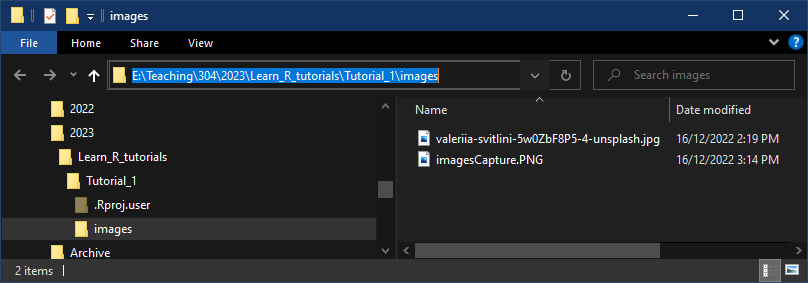
Windows explorer
On a Mac, you will need to use the equivalent, which is Finder. You may need to use "View" --> Show path bar so that the path is highlighted down below. The path is highlighted down the bottom, and CTRL clicking on the path bar will give the option of Copy "File" as Pathname.
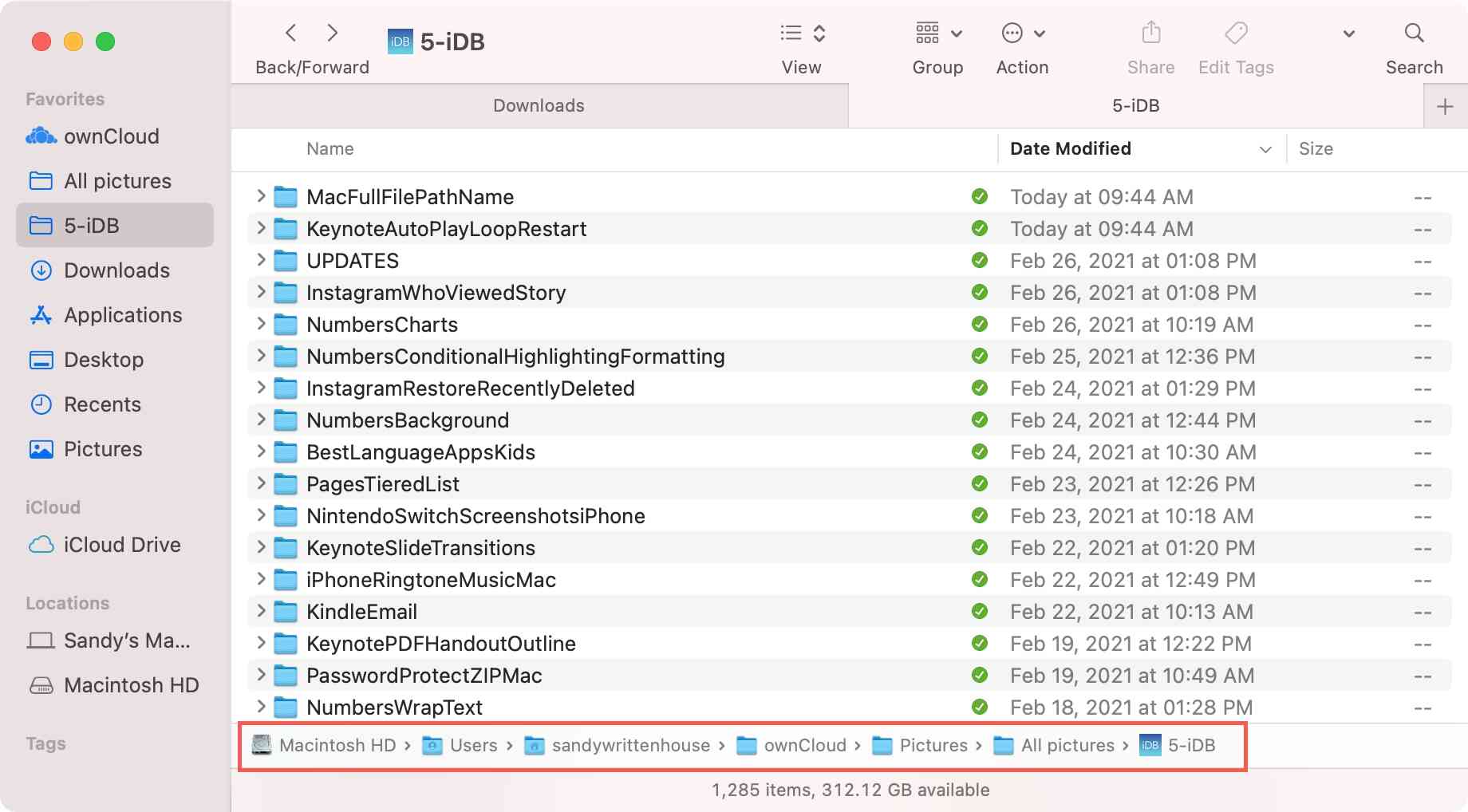
Finder
In Windows, the convention is to have a drive letter followed by a colon e.g. C:\My Programs. Windows uses backslashes (\\) in its paths, whereas, due to its linux roots, R uses forward slashes (/) as do Macs. This can create much confusion 😵. Thus the equivalent R path to the original Windows directory is C:/My Programs. Notice the subtle difference in the direction of the slashes??
Relative or absolute paths?
Paths can also be relative or absolute, which can be another stumbling block for novice programmers. An absolute path describes a location relative to the to the root or starting directory. In Windows this is C:\ and on a Mac, it is /. A relative path is used more frequently in programming, because it makes your code more portable across different computers. Relative paths, instead have the concept of a working directory. This is the folder where the programme is looking for files. Deviations from this directory are indicated by paths that start with a . (current directory) or .. (parent directory), such as "./data/sids.xlsx". This means "start from the working directory where the programme is currently looking, then go to the data directory, then look in the data directory for sids.xlsx".
<div class="panel panel-default tutorial-question-container">
<div data-label="relative_paths" class="tutorial-question panel-body">
<div id="relative_paths-answer_container" class="shiny-html-output"></div>
<div id="relative_paths-message_container" class="shiny-html-output"></div>
<div id="relative_paths-action_button_container" class="shiny-html-output"></div>
<script>if (Tutorial.triggerMathJax) Tutorial.triggerMathJax()</script>
</div>
</div>
It is a good idea to store your work on a drive that will be backed up. Electronic storage is great from a convenience point of view, but it can be easily erased by accident or by hardware fault.
Revising R file paths
<div class="panel panel-default tutorial-question-container">
<div data-label="paths" class="tutorial-question panel-body">
<div id="paths-answer_container" class="shiny-html-output"></div>
<div id="paths-message_container" class="shiny-html-output"></div>
<div id="paths-action_button_container" class="shiny-html-output"></div>
<script>if (Tutorial.triggerMathJax) Tutorial.triggerMathJax()</script>
</div>
</div>
Working directories
R has a concept of the 'working directory' or 'folder'. This is the directory where R looks to find stuff you may be working on. To find out where this is on your machine, input the code for the following function: getwd(). Try this below and observe the output.
getwd()Note: this is actually the directory on the server this program is running, not your computer!
Comments
While we will focus on getting R to do stuff for us by writing code, sometimes we want to write stuff for us to see, not the computer. This is useful for your future self, who may not understand what your very clever code is accomplishing today. These annotations are called comments. All you need to do is preface what you are saying with a #🤓.
# long and complicated function that does miraculous things...The basics of R: objects, functions and arguments
This is the folder in which your R session is currently working.
It will be able to find files that you tell to look for in this directory.
R is built on functions. Functions take some sort of input and transform it into output.
<div class="grViz html-widget html-fill-item" id="htmlwidget-d51d1b7f6a1554c29dd5" style="width:624px;height:384px;"></div>
<script type="application/json" data-for="htmlwidget-d51d1b7f6a1554c29dd5">{"x":{"diagram":"digraph flowchart {\n      graph [layout = dot, rankdir = LR]\n      # define node aesthetics\n      node [fontname = Arial, shape = oval, color = Lavender, style = filled]        \n      tab1 [label = \"Input\"]\n      tab2 [label = \"Function\"]\n      tab3 [label = \"Output\"]\n      \n# set up node layout\n      # Childcare centres\n      tab1 -> tab2;\n      tab2 -> tab3;\n      }","config":{"engine":"dot","options":null}},"evals":[],"jsHooks":[]}</script>
In addition, arguments and options are used to modify the output of functions. Functions often have default or automatically applied arguments, that have to be explicitly modified.
<div class="grViz html-widget html-fill-item" id="htmlwidget-fd970354cc4de91b9af9" style="width:624px;height:384px;"></div>
<script type="application/json" data-for="htmlwidget-fd970354cc4de91b9af9">{"x":{"diagram":"digraph flowchart {\n      graph [layout = dot, rankdir = LR]\n      # define node aesthetics\n      node [fontname = Arial, shape = oval, color = Lavender, style = filled]        \n      tab1 [label = \"Arguments\"]\n      tab2 [label = \"Options\"]\n      tab3 [label = \"Function \n default arguments\"]\n      tab4 [label = \"Output\"]\n      \n# set up node layout\n      tab1 -> tab3;\n      tab2 -> tab3;\n      tab3 -> tab4;\n      }","config":{"engine":"dot","options":null}},"evals":[],"jsHooks":[]}</script>
For example, list.files() is an example of a function. The brackets at the end distinguish a function from another type of object, such as the name of a data.frame which does not have brackets. To see what the arguments for a particular file are type a question mark ?, followed by the name of the function.
- Try to get the documentation for the function
list.files()in the pane below.
# without_brackets ----
?list.files
It should show the arguments and defaults for list.files() and describe their behaviour, perhaps in a new browser tab. Also, some useful examples are given at the bottom. In R, it may open a browser and show the help file.
We can now appreciate that an option (or in computer speak argument) is recursive = TRUE. This lists not only the files in the working directory, but also others that are contained in other directories or folders in the working directory and so on.
We can look at what is in our working directory in Finder or Windows Explorer but we can also use R. Try running the following code. Note, the argument recursive = TRUE to our function list.files(). Note, that functions in R are always accompanied by brackets "()". This ensures that the output is displayed with subsequent folders and files within the working directory.
## default argument (recursive = FALSE)
list.files()

## altered argument
list.files(recursive = TRUE)

fs::dir_tree()
We can see that there is a sids.xlsx dataset in the data directory. The data directory is in our current directory. The dir_tree() command shows the structure more explicitly. . is shorthand for the current or working directory.
Ok, so we know that sids.xlsx is in our data directory, and that the data folder or directory is in our current directory.
Importing data using file paths
Now we can go ahead and import our dataset sids.xlsx into R for analysis. We need to tell R where to find sids.xlsx. We know of a function that reads .xlsx files called import() in the rio package. We need to add the path as the first argument to the import() function. Go ahead and try importing the Excel™ sheet by modifying the following code. Remember that the path has to be in quotation marks as it is a string. We have decided to name our spreadsheet df, standing for data frame. The <- is an assignment operator.
## This function needs a text relative file path in quotes as an argument
df <- rio::import()
## This function needs a text relative file path in quotes as an argument
df <- rio::import("./data/sids.xlsx")Hint: You need to add the file path "./data/sids.xlsx" as the first argument to the rio::import() function.
A sneak peak at our data
Next have a sneak peak at your spreadsheet by using the head() function with df as an argument to it, after loading our data.
df <- rio::import("./data/sids.xlsx")
## how do we see a sneak peak of the data?
df <- rio::import("./data/sids.xlsx")
## how do we see a sneak peak of the data?
head(df)Hint: The function to use after import is head() with the name object (unquoted) df as the first argument to this function.
Great! We now have our spreadsheet in R, and we are now ready to roll!
Interpreting the meaning of the sids.xlsx data
<div class="panel panel-default tutorial-question-container">
<div data-label="interpret_df" class="tutorial-question panel-body">
<div id="interpret_df-answer_container" class="shiny-html-output"></div>
<div id="interpret_df-message_container" class="shiny-html-output"></div>
<div id="interpret_df-action_button_container" class="shiny-html-output"></div>
<script>if (Tutorial.triggerMathJax) Tutorial.triggerMathJax()</script>
</div>
</div>
Great, we are now ready for the next step. Well done! 🤠
Summary
Hopefully, we have learned a lot in this session.
Specifically, we have covered:
- The need to keep our files tidy. Folders are free! Don't just dump everything on the desktop!
- A knowledge of file paths are essential for working with R. Subtle but important differences between Windows and MacOs file paths.
Rprefers the MacOs version due to its Linux/Unix roots. - The basic building blocks of
Rincludeobjects,functions()andarguments. Please learn what these dreaded jargon words mean, it will make yourRlife much simpler! 🥸
🔑 Key R libraries used
rio- for importing data files (Excel spreadsheets)
🎯 Essential R commands
getwd()- get the current working directorylist.files()- list files in the working directoryfs::dir_tree()- display directory structure as a treerio::import()- import data files into Rhead()- view the first few rows of adata.frame<-- assignment operator to create objects#- create comments in R code